




MP3 bitrate is the most important factor in determining the amount of compression (final file size), quality, and encoding speed. Reducing the MP3 bitrate will decrease the overall quality of the file - IE more compression equals a "muddier" sound. Smaller bitrates mean more compression or smaller files; but it also means the quality will be lower. Think of lower bitrates as approaching telephone quality; while higher bitrates approach CD Quality. One must determine the best balance between bitrate and sound quality. Also please note that having a lot (<96kbps) or a little (>256kbps) of bitrate compression may effect compatibility with your MP3 player. When in doubt consult the manual of your MP3 device to ensure it can support your target bitrate.
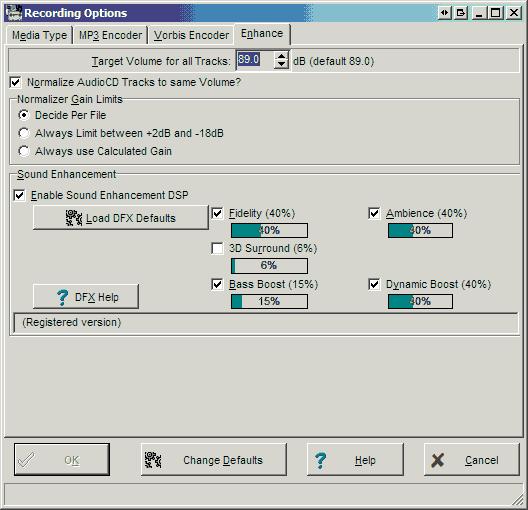
Further note that increasing the bitrate is not advised. Increasing the bitrate of an existing MP3 file will do nothing to improve the quality of the MP3 file. MP3 files use "lossy" compression to obtain suitable file sizes; that lossy compression has already been performed to achieve the current bitrate. Uncompressing (or Decoding) an MP3 file cannot restore the original audio data which was "compressed out" during the MP3 encoding process. As such, increasing the bitrate will not be able to add anything further to the file except wasted space. CDMaster32 does provide an Audio Enhancement engine which may assist you in restoring some of the fidelity lost during the original compression process; but this should only be used as a last resort.
CDMaster32 provides you with a simple interface for File Conversion. In this case you would want to convert MP3 to MP3 with a new bitrate.
I invite you to download CDMaster32 for yourself to see just how easy it is to use our File Conversion step.
Download and Install the program now and I'll walk you through this process step-by-step.
Hint: You can select other "output" file types here as well. CDMaster32 will also create Vorbis (OGG) and WAV files if you check the specific boxes.
That's it... That's all there is to it!
Did you know CDMaster32 many other features including:
CDMaster32 has a lot of other features... check out our growing Tutorials section.
By following these simple steps and you can convert the bitrate of any MP3 file.
For more information on MP3 Bitrates or MP3 Audio Quality please see Wikipedia.
|
|
|
|
|
| [Home] | [CDMaster32 Home] | [Download Sites] | [Order Online] | [Tutorials] |
|---|